AI apps (MCP)
What it is for
The AI apps (MCP) tab in Communication channels connects Doubleros to an AI app you already use — Claude, ChatGPT, Claude Code, Cursor or any other app that supports MCP (Model Context Protocol). The AI app can then read your organization's data and — if the organization allows it — change it too.
The app works under your account and with your permissions. Each member connects it themselves, and each organization has its own address.
The process in short: (an administrator) decides whether AI apps may change data → a member copies the address → adds it in the AI app → signs in to Doubleros and approves the access → (for sensitive actions) a person approves the action through a link.
Where to find it
In the left menu click Organization → Communication channels and in the tabs open the AI apps (MCP) tab.
The tab appears only if connecting AI apps is available for the organization and you have the permission to connect AI apps or to see connected accounts.
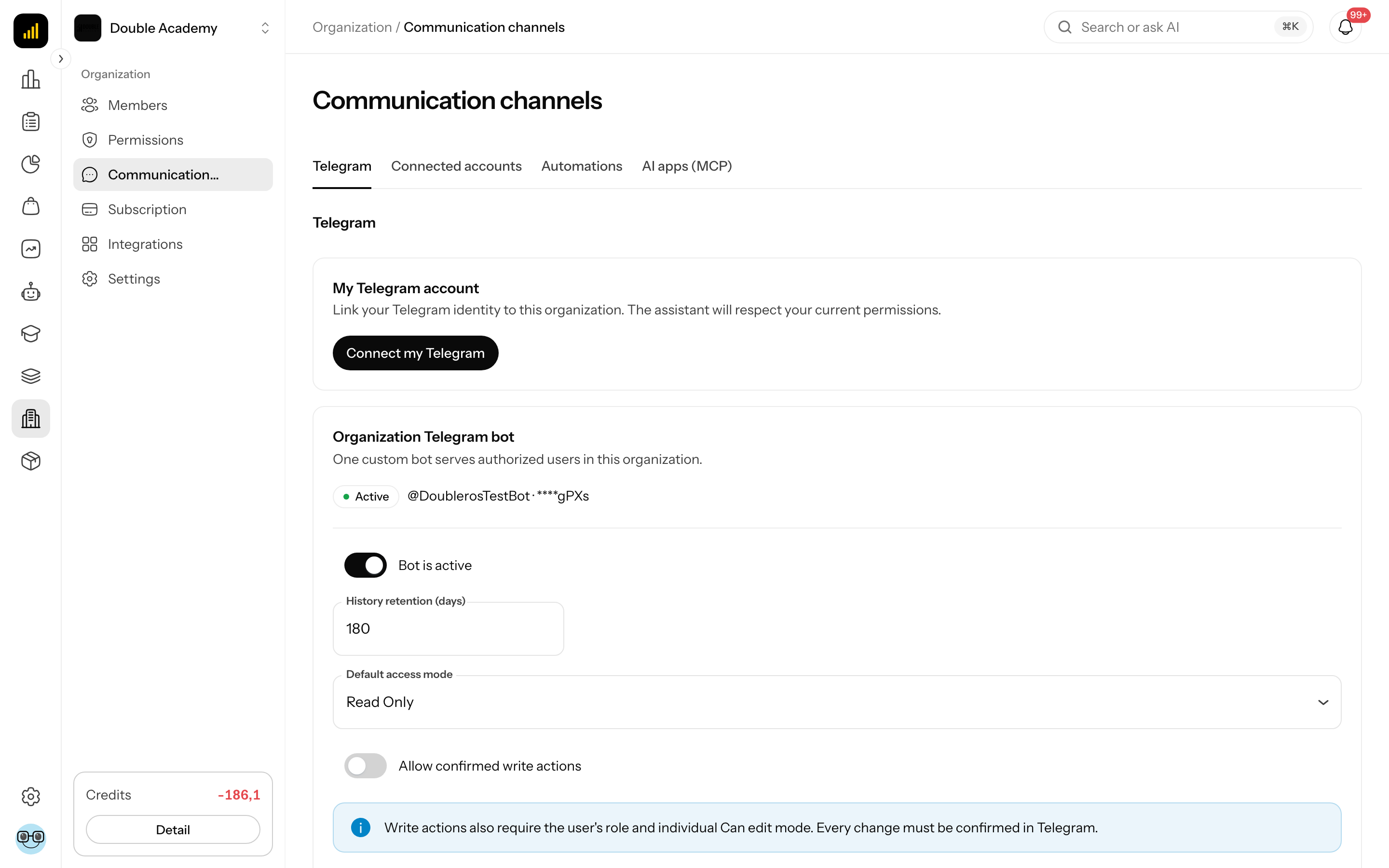
What I see in the AI apps (MCP) tab
What the tab shows depends on your permissions:
| Card | Who sees it | What it contains |
|---|---|---|
| Connect an AI app | a member with the permission to connect AI apps | MCP server address with a copy button and instructions for Claude, ChatGPT, Claude Code and Cursor |
| Changes through MCP | a member who sees connected accounts or may change confirmed write actions | the switches Allow changes through MCP, Allow deleting through MCP, Require approval of sensitive actions |
| My connections | a member with the permission to connect AI apps | AI apps you connected |
| Connections in the organization | a member with the permission to see connected accounts | every AI app of every member |
If you lack the permission to connect AI apps, instead of the instructions you see "Your role is not allowed to connect an AI app. Ask an administrator of the organization to grant it."
How to allow AI apps to change data
By default an AI app only reads data. The organization must first allow changes and deleting.
Before you start: you need the Allow confirmed write actions permission (in the matrix under Organization → Channel settings).
- In the left menu click Organization → Communication channels and open the AI apps (MCP) tab.
- In the Changes through MCP card switch on Allow changes through MCP.
- In the Allow changes through MCP? window click Allow.
- If AI apps should also be able to delete, switch on Allow deleting through MCP and confirm Allow in the Allow deleting through MCP? window. This switch can be turned on only after changes are on.
- After every switch change "MCP settings saved." appears. The setting applies to every connection at once.
Switching off Allow changes through MCP or Allow deleting through MCP is saved at once, without a confirmation window. Switching off changes also switches off deleting. The Allow deleting through MCP and Require approval of sensitive actions switches are disabled until Allow changes through MCP is on.
| Switch | Meaning | Default |
|---|---|---|
| Allow changes through MCP | the AI app may create and update data within the member's permissions | off |
| Allow deleting through MCP | the AI app may also delete data; can be switched on only with changes on | off |
| Require approval of sensitive actions | payments, documents, e-mails to customers, access, permanent deletes, bulk changes and publishing wait until a person approves them through a link | on; takes effect only once changes are on |
Apps that are already connected must be connected again
AI apps that are already connected keep only the permissions they were given when connecting. To let them change data, disconnect them and connect again — and the member must confirm the changes while connecting.
Turning off approval of sensitive actions: if you switch off Require approval of sensitive actions, the Turn off approval of sensitive actions? window opens — after you click Turn off, AI apps will run sensitive actions at once, without a person approving them.
How to connect an AI app to the organization
Before you start: you need the permission to connect AI apps (in the matrix Organization → Channel settings → AI apps (MCP) → Own) and an account in the AI app. If the app should change data, the organization must have Allow changes through MCP switched on (see above).
- In the left menu click Organization → Communication channels and open the AI apps (MCP) tab.
- In the Connect an AI app card copy the MCP server address.
- Below the address click your app's tab and follow the steps:
| App | Steps |
|---|---|
| Claude | on claude.ai open Settings → Connectors; choose Add custom connector; paste the MCP server address and confirm |
| ChatGPT | in ChatGPT open Settings → Connectors (or Apps); add a new MCP server; paste the MCP server address and confirm |
| Claude Code | run the command from the Command field in your terminal (it can be copied); in Claude Code type /mcp and sign in |
| Cursor | in Cursor open the MCP settings; add a new server with the MCP server address |
- The AI app opens the Doubleros sign-in page. Sign in.
- On the page "App wants to access Doubleros", in the Organization field choose the organization.
- Review the Permissions. If the organization allowed changes, you can tick Allow changes (create and edit) and then also Allow deleting.
- Click Allow access. (Deny cancels the connection.)
Allow only if you started this connection yourself.
How to check it worked: in the AI apps (MCP) tab the My connections card has a new row with the app's name. Ask the AI app something, for example "How many orders came in this week?" — a time appears in the Last used column.
How to approve a sensitive action of an AI app
When Require approval of sensitive actions is on, the AI app does not run a sensitive action (payment, document, e-mail to a customer, access, permanent delete, bulk change, website publishing) at once — it sends a link for approval instead.
- Open the link the AI app gave you. The page "App asks you to approve an action" opens.
- Read the What will happen and Why this needs approval sections, who started the action (Started by:) and how long the request is valid (Expires in …).
- Click Approve or Reject.
- After approving, "The action was approved and carried out." appears; after rejecting, "The action was rejected. Nothing was changed." You can then return to your AI app.
Exactly what you see on the page is carried out. If the request expires, nothing changes — start the action again from the AI app.
How to disconnect your own AI app
- In Organization → Communication channels → AI apps (MCP) find the My connections card.
- In the app's row click Disconnect. Several apps at once: tick their rows (the checkbox in the table header selects all on the page) and click Disconnect selected above the table on the right.
- In the Disconnect AI app window confirm with Disconnect.
- "The AI app was disconnected." appears (for several, "AI apps disconnected: N."). The app loses access to the organization immediately.
The My connections and Connections in the organization tables show 10 rows per page (pagination below the table) and can be sorted by clicking the Member, App, Connected or Last used column header. By default the newest connections are on top.
Columns of the connections table:
| Column | Meaning |
|---|---|
| Member | who connected the app (only in Connections in the organization) |
| App | the AI app's name, or Unknown app |
| Permissions | read, write, delete — what the app was given when connecting |
| Connected | when the app was connected |
| Last used | when the app last accessed data, or never |
How to disconnect other members' AI apps
Before you start: you need the Connected accounts → Delete permission.
- In Organization → Communication channels → AI apps (MCP) find the Connections in the organization card.
- Disconnect one connection with Disconnect in its row.
- Several at once: tick the rows (the checkbox in the table header selects all on the page) and click Disconnect selected above the table on the right.
- Confirm the Disconnect AI app window.
- "AI apps disconnected: N." appears. If some could not be disconnected, "Disconnected X of Y. The rest could not be disconnected, try again." appears.
Who can do this
Permissions are set in Organization → Permissions, in the Organization module under the Channel settings row:
| Matrix row | What it allows |
|---|---|
| AI apps (MCP) → Own | connect and disconnect your own AI app |
| Connected accounts → View | see Connections in the organization and the Changes through MCP setting |
| Connected accounts → Delete | disconnect other members' AI apps |
| Allow confirmed write actions → Edit | change the switches in Changes through MCP |
An AI app may never do more than the member who connected it — if the member may not, for example, delete products, the AI app will not delete them either.
Common questions and problems
I don't see the AI apps (MCP) tab. Connecting AI apps is not available for the organization, or you have neither the AI apps (MCP) nor the Connected accounts permission.
The switches in Changes through MCP are disabled and "Only a member with the permission for confirmed write actions in AI channels can change this setting." is shown. You lack the Allow confirmed write actions permission.
"Changes through MCP are blocked for this organization by the platform operator." is shown. The operator blocked changes; the switches have no effect while the block lasts. Contact Doubleros support.
The AI app can only read although I allowed changes. The app was connected before you allowed changes, or the member did not tick Allow changes (create and edit) while connecting. Disconnect it and connect again.
On the page "… wants to access Doubleros" Allow changes (create and edit) cannot be ticked. The reason is shown below the checkbox: "Choose an organization first." (choose it in the Organization field), "The organization has not switched this on (AI channels → MCP)." (an administrator must switch on Allow changes through MCP in Organization → Communication channels → AI apps (MCP)), "Your role does not have the permission for this." or "Blocked for this organization by the platform operator."
The sign-in page shows "You cannot connect an AI app to this organization. Either you are not a member, or your role does not allow it." Your role does not have the AI apps (MCP) → Own permission. Ask the organization administrator.
The sign-in page shows "Request expired". The connection request is no longer valid. Start the connection again from the AI app.
The Allow deleting through MCP switch cannot be turned on. First switch on Allow changes through MCP ("Deleting can be allowed only after changes are switched on.").
The approval page shows "You do not have the permission to approve this action…". Send the link to a member of the organization who has the permission for that action.
The approval page shows "An action cannot be approved or rejected while you are signed in as another user." You are signed in on behalf of another user. Sign in with your own account.
I connected a second organization and the AI app sees only the first. The address belongs to one organization only. Connect the second organization with its own address from its AI apps (MCP) tab.
Related
- Communication channels — Telegram and automations
- Ros (AI helper) — Ros inside Doubleros
- Permission matrix — what each role may do