Getting around the interface
What it is for
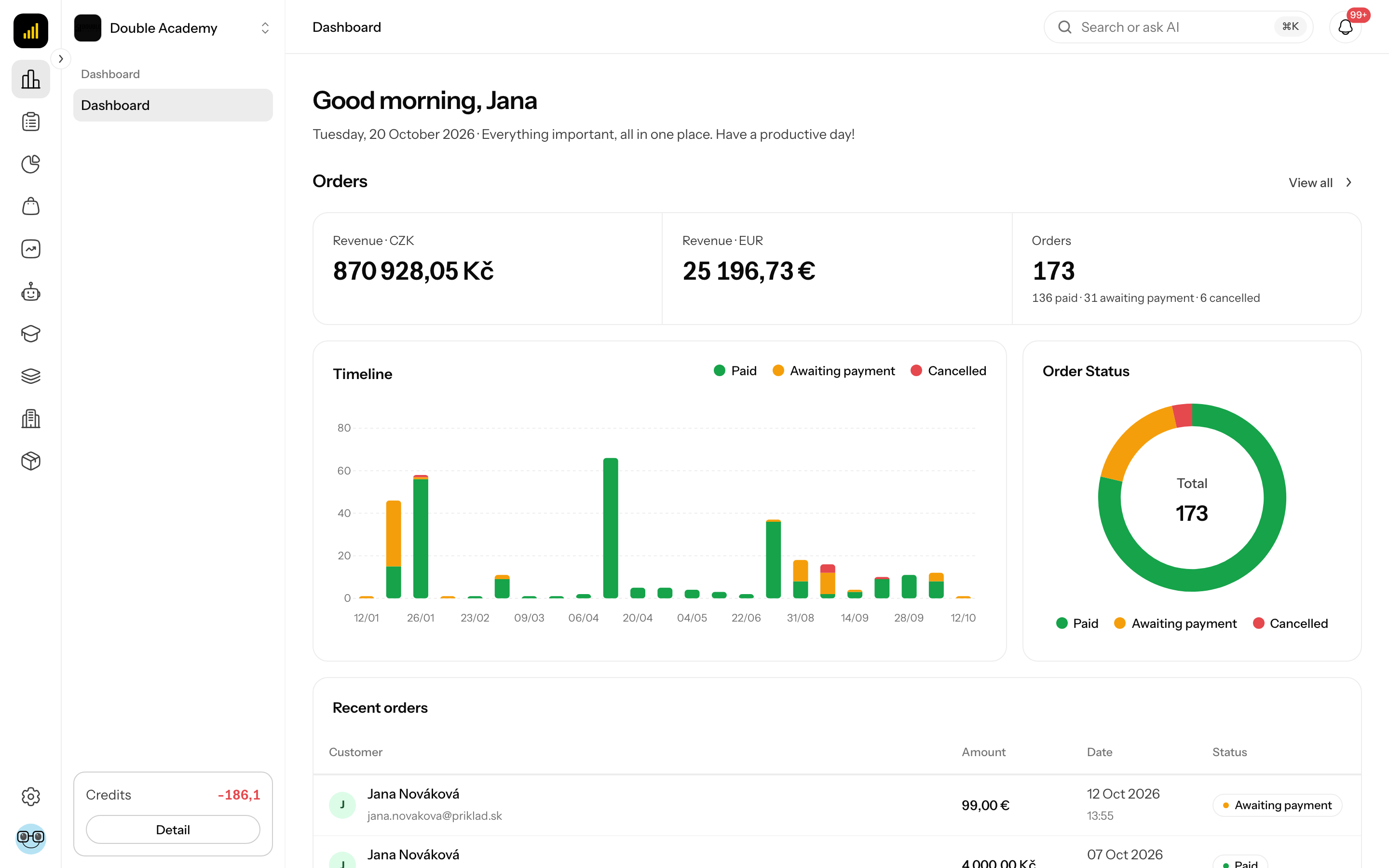
The Doubleros app has the same layout everywhere: the sidebar with modules and their pages on the left, the top bar at the top with where you are, Ros (AI helper) and notifications, and the page content in the middle. Once you know these places you can find your way around any module.
Where to find it
You see the layout right after signing in, on every page under /dashboard. The first page after signing in is Dashboard.
How the sidebar is built
On a computer (a window at least about 1200 px wide) the Doubleros sidebar has two parts:
- A narrow strip of module icons on the far left. At the top is the Doubleros logo (click it to go back to Dashboard), below it one icon per module. Clicking an icon opens the first page of the module you have access to.
- The module's page panel right next to it. At the top is the organization switcher (name and logo of the current organization), below it the pages of the open module, and at the very bottom the Credits card with the AI credit balance.
At the bottom of the icon strip there are two more buttons:
- the cog icon Language and appearance — app language and light/dark mode,
- your avatar — the account menu (Dashboard, Profile, Logout).
The small arrow at the edge of the strip (labelled Expand menu / Collapse menu) widens the strip so module names appear next to the icons. The app remembers this choice.
On a phone or in a narrow window the sidebar is hidden. Open it with the menu icon at the top left of the top bar. In the open menu, tapping a module only lists its pages — the menu closes once you pick a page. On a phone the organization switcher sits in the top bar.
Which modules are in the sidebar and in what order
The modules always appear in this order. You see only those your organization has switched on and for which you have at least one permission — so a colleague may see more or fewer items than you.
| Module in the menu | Pages in the module | What it is for |
|---|---|---|
| Dashboard | — (direct link) | home page with a greeting and shortcuts to the main parts of the app |
| CRM | Today, Clients, Deals, Tasks, Groups, Results | clients, deals, tasks and salespeople's results |
| Statistics | Finance, Sales, Salespeople, Membership | financial and sales reports |
| Sales | Orders, Payment reminders, Exports, Products, Categories, Attributes, Discount Codes, Settings | the eshop: orders, catalogue, discounts and shop settings |
| Ambassador | My Affiliate Link, My Wallet, Referrals, Purchases, Payouts, Users, Settings | affiliate programme — your own link and commissions as well as running the programme |
| AI | Assistants, Knowledge, Settings | AI assistants for your customers and their knowledge |
| Agents (tagged NEW) | Overview, Mail agents, Telephone agents | AI agents that handle mail and phone calls |
| Membership | Home, My learning, Course catalog, My Certificates, Membership administration | courses from the student's side and their administration |
| Bootcamp | My workbooks, Manage Bootcamp | bootcamp workbooks |
| Live events | Events, Recordings | live broadcasting in the browser and its recordings |
| Content | Projects | websites, pages, funnels and forms — all built inside a project |
| Organization | Members, Permissions, Communication channels, Subscription, Integrations, Settings | team, permissions, subscription and settings of the whole organization |
Mail agents may show a number — the count of e-mails waiting for a person. Only those allowed to work with agent requests see it.
Where the old items went
- Academy is now called Membership. Courses, videos, members, results and settings are managed under Membership → Membership administration.
- Eshop is called Sales in the menu.
- Websites, pages, funnels and forms no longer have their own menu items — open them through Content → Projects and the project they belong to.
What is under Membership administration
Membership → Membership administration opens course administration. This screen has a row of tabs under the heading: Courses & bundles, Videos, Members, Results, Home page, Appearance, Access.
You see only the tabs you have permission for. Membership administration appears in the menu only if you have permission for at least one of them.
Why I don't see some modules in the menu
The Doubleros sidebar hides a module for four reasons:
- Your organization does not have the module switched on. Agents and Live events are off by default for a new organization. Doubleros switches them on — ask support for them.
- The module is not part of the subscription plan. A module appears only if the plan the organization has in Organization → Subscription includes it — see Subscription. An organization with free access has every module of every plan.
- You have no permission for it. A module appears when you have permission for at least one of its pages. An organization admin adds permissions in Organization → Permissions — see Permission matrix.
- A single page of the module is missing because you lack permission for that page. In the Ambassador module, for example, a regular ambassador sees only My Affiliate Link and My Wallet, while a programme manager also sees Referrals, Purchases, Payouts, Users and Settings.
What is in the top bar
From left to right the Doubleros top bar contains:
- The trail Module / Page (for example CRM / Clients) — shows where you are.
- The Search or ask AI field with the ⌘K shortcut — opens the Ros panel. Ros is available to every member of an organization.
- The notification bell — opens the Notifications panel.
How to open Ros and what it does
Ros is the AI helper inside the Doubleros app. It answers questions about your organization and can also make changes in some areas.
- In the top bar click Search or ask AI (or press ⌘K on a Mac).
- The Ros panel opens on the right. The page narrows but stays usable.
- Type a question or instruction into Type a message... and send it.
- Attach an image with the gallery icon in the message field — Ros sees it and can add it to a product.
- Close the panel with the cross at its top right or press ⌘K again.
The Ros panel has a ⋮ menu at the top right with the item Clear history — after confirming in Clear conversation history with Clear, every message is deleted for good.
What Ros can do:
| Area | What Ros does with it |
|---|---|
| products, categories, variants and attributes in the catalog | reads and changes |
| discount codes | reads and changes |
| forms | reads and changes |
| CRM — tasks, deals and contact notes | reads and changes |
| CRM — contacts, groups, pipeline reports | reads only |
| orders and shop settings, members' area and courses, projects, websites and funnels, ambassadors, analytics, live events | reads only |
| organization, members and roles, credits, mail and voice agents, knowledge bases, AI assistants | reads only |
Ros sees and does only what you have permission for. It does not build websites or funnels — those are built in a project (Content → Projects).
How to change the app language and light or dark mode
- At the very bottom of the sidebar click the cog icon Language and appearance.
- Under Language pick the interface language (Čeština, Slovenčina, English).
- Under Appearance pick one of three icons: Light, Dark or System.
The change applies at once. The interface language is not the same as the language of the e-mails the app sends you (set in your profile), nor the content languages of the organization (set in organization settings).
How to work with notifications
- In the top bar click the bell. The Notifications panel opens.
- Notifications are split into Today and Earlier. Load older ones with Load more.
- Delete one notification with the bin icon next to it (labelled Delete).
- Mark all as read clears the unread markers.
- Options → Delete all and confirming deletes every notification.
An empty panel shows You are all caught up.
How to get to your profile and sign out
- At the very bottom of the sidebar click your avatar.
- The menu shows your name and e-mail and the items Dashboard and Profile.
- Profile opens Profile and my account.
- Logout signs you out.
What the Credits card shows
The Credits card at the bottom of the sidebar panel shows the organization's AI credit balance. Detail opens the details and credit purchase — see AI credits.
What is on the Dashboard page
The Dashboard page (the first item in the sidebar) shows a greeting (Good morning / Good afternoon / Good evening) with the date and a short line that fits the time of day. On the right of the greeting is the Ros card — clicking it opens the Ros panel. Below the greeting is the What would you like to do today? section with shortcut cards. The order and course charts and tables are no longer on the page. A card opens the matching part of the app:
| Card | Where it leads |
|---|---|
| Talk to an AI assistant | AI → Assistants |
| Continue learning | my courses in the membership area |
| Work with clients | CRM → Contacts |
| Plan your tasks | my tasks in the CRM |
| Build websites and content | projects |
| Manage sales | orders |
| Set up MCP | Organization → Channels, the MCP tab (a wider card at the end) |
A card appears only if the matching sidebar item is available to you. If you have access to none, a note about shortcuts reflecting your access is shown. The Set up MCP card is for people who have permission for their own MCP channel or to view channel accounts.
Which patterns apply on most screens
Most Doubleros screens share the same structure:
- The page heading, with the main action to its right (for example New client, New project).
- Tabs and a bar above the table with search and filters.
- The table of records. Clicking a row opens the detail.
- The "…" menu at the end of a row with actions for that record (edit, delete and so on).
- Checkboxes on the left — selecting rows reveals bulk actions.
- Forms open in a side panel (drawer) from the right, not in a new window.
- Dangerous actions ask for confirmation. The confirmation text says exactly what will happen.
- A screen your role can only view (View only in the permission matrix) carries a Read only badge under the heading. It has no buttons to create, edit or delete, and form fields are locked.
How tables that do not fit the width behave is set in Profile → Appearance — see Profile and my account.
Who can do this
Every signed-in member of an organization sees the layout. What the sidebar contains depends on their permissions (Organization → Permissions). Ros is available to every member of the organization, without the AI module and without a special permission.
Common questions and problems
A colleague sees more menu items than I do. That is not a bug — the menu shows only pages you have permission for. Ask an organization admin to adjust your role in Organization → Permissions.
I can't see the Agents or Live events module. These modules are off by default. Doubleros switches them on for a given organization.
I can't see a module even though I have the Owner role. The module is not in the organization's subscription plan — see Subscription.
I can't see the Search or ask AI field. The field is in the top bar for every member of an organization. If you can't see it, you are not in any organization — select or create one (see Organizations).
I'm looking for Academy / Eshop / Forms. Academy is Membership, Eshop is Sales, forms are inside a project under Content → Projects.
The whole menu disappeared and I only see "Your organization access is suspended". An admin has suspended your access. Only an organization administrator can restore it.