Attributes
What it is for
The Attributes screen manages the options product variants differ by — size, colour, material, or for a course for example Basic and With video analysis. An attribute has two levels: the type (for example Size) and its values (S, M, L, XL). In Products the values are then combined into variants — every value with every value.
Where to find it
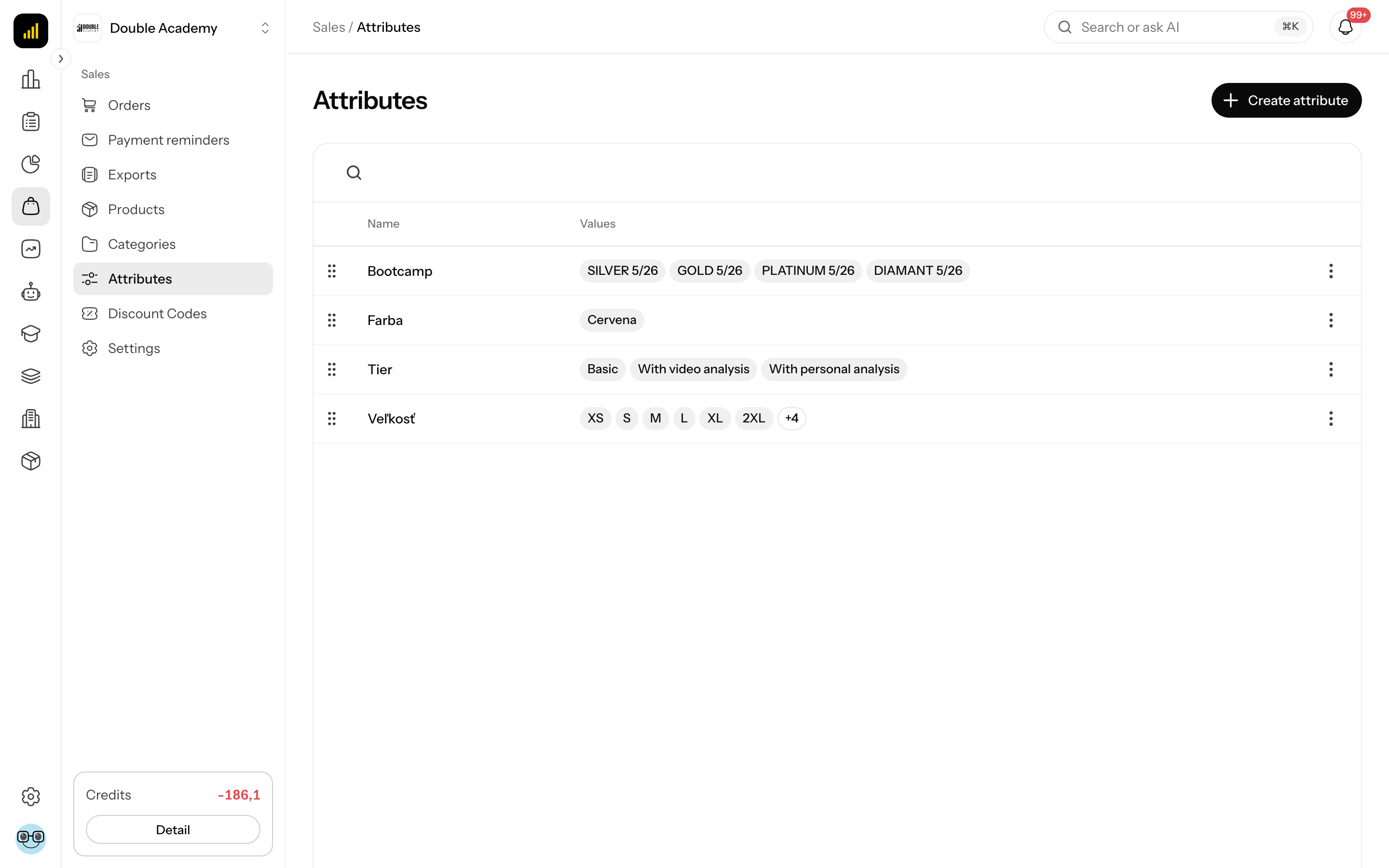
In the left menu click Sales, then Attributes. The list opens with the heading Sales / Attributes.
Before you start
Attributes on the Attributes screen are optional — a simple product (an e-book, a ticket) does not need them. You need them once a product is sold in several versions.
- Attributes and values can also be created right on the product in the Add variants window — this screen is for managing them, their translations and order.
- Check Supported languages in Organization → Settings → Localization — each language gets one Name field.
- You need the Sales → Attributes → Create permission (see Who can do this).
What I see in the attribute list
The Sales → Attributes list is a table of attribute types. Above it is the Search... button for a search by name.
| Column | Meaning |
|---|---|
| (handle on the left) | drag to change the order of attributes |
| Name | attribute name in the app language |
| Values | the first six values as chips, the rest as +N; without values No values yet |
Clicking a row opens the attribute's side panel. The … menu at the end of the row offers Edit, More info (columns hidden on a narrow screen) and Delete. Below the table are Rows per page and paging.
How to create an attribute
- In the left menu click Sales → Attributes.
- Top right, click Create attribute.
- The Add attribute type panel opens on the right.
- Fill in Name in each language (with several languages the field shows the language in brackets).
- Check the Code field — it is filled in from the name in the first language until you overwrite it.
- Click Create.
- You see Successfully created and the panel stays open, now titled Edit attribute type with a new Attribute values part — go on to add values (next part).
| Field | Required | Meaning | Limits / default |
|---|---|---|---|
| Name | no, but recommended | name the customer sees, for example Size | empty names are not saved; without a name the code is shown |
| Code | yes | System identifier, e.g. color, size, material | empty code: Enter a code; must be unique in the organization |
The customer never sees the code
Write the code in lowercase without accents or spaces. The customer sees only the Name.
How to add attribute values
Values are added in the attribute's side panel, in the Attribute values part:
- In Sales → Attributes click the attribute row (or it is still open right after creation).
- In Attribute values click into the field New value, e.g. With video analysis — Enter adds it.
- Type the value name, for example XL.
- Press Enter or click the Add value (+) button next to the field.
- Repeat for more values.
Value changes are saved right away — no need to click Save. A new value gets its name in the language you are using the app in, and a code made from the name. Add translations to other languages by editing the value. Above the list you see how many products use the attribute (No product uses it or Used by N products).
How to edit or translate a value
- In the attribute's side panel click the pencil icon Edit next to the value.
- The Edit value window opens.
- Fill in Name in each language and check Code (System identifier, e.g. red, xl, cotton; required — otherwise Enter a code).
- Click Save. You see Successfully saved.
How to reorder values and attributes
On the Attributes screen the order is set by dragging:
- Values: in the side panel grab a value by its handle (Drag to reorder) and move it. It is saved at once. Values are offered in this order when variants are created.
- Attributes: in the list grab a row by the handle on the left and move it. Works only with the Edit permission and with no search entered.
How to edit an attribute
- In Sales → Attributes click the attribute row (or … → Edit).
- In the Edit attribute type panel change Name or Code.
- Click Save. You see Successfully saved.
For an existing attribute the Code no longer follows the name.
How to delete an attribute value
- In the attribute's side panel click the bin icon next to the value — or click the Edit pencil next to the value and in the Edit value window click Delete.
- Confirm Are you sure you want to delete this attribute value?.
You see Successfully deleted. The value disappears from the choice when new variants are created.
How to delete an attribute
- In Sales → Attributes open the row's … menu and click Delete — or click Delete in the bottom bar of the Edit attribute type side panel.
- Read the confirmation:
- unused attribute: Are you sure you want to delete this attribute type? All its values will also be deleted.
- used attribute: N products use this attribute. Their variants lose this option once it is deleted. Delete it?
- Confirm.
You see Successfully deleted. Past orders keep their lines. If products still use the attribute, consider renaming it instead — deleting affects all their variants.
How to use attributes on a product
Attributes from the Attributes screen are used in the product form:
- Open Sales → Products and the product.
- In Variants click Product with variants or Add new variant (for a course Add variants by options).
- In the Add variants window pick the attribute in Option name and its values in Values.
- Click Create variants and save the product.
The whole procedure is in the Products chapter.
How to check attributes work
- In Sales → Attributes check that the attribute has all its values in the Values column, in the right order.
- Open the side panel and check that every value has a name in all languages (through Edit).
- Create variants on a product and check in the shop that the customer sees translated value names.
Who can do this
An administrator sets the permissions in the permission matrix on the Sales → Attributes row:
| Permission | Allows |
|---|---|
| View | the Attributes menu item and the list |
| Create | the Create attribute button; creating attributes and values right in the Add variants window of a product |
| Edit | editing name, code, values and order |
| Delete | deleting attributes and values |
Common questions and problems
I don't see the Create attribute button. You lack the Sales → Attributes → Create permission.
I don't see the Attribute values part. Values can be added only after the attribute exists — click Create first.
Error An attribute type with code "…" already exists. The code must be unique in the organization; change it.
I can't drag attributes into a new order. Clear the search, or you lack the Edit permission.
On a product I see No attributes are defined yet. Ask an administrator to create product attributes. The organization has no attributes and you may not create them — ask an administrator, or for the Sales → Attributes → Create permission.
The Attributes list shows a code instead of a name. The attribute or value has no Name in the app's language or in any other language (if only the app's language is missing, a name from another language is shown) — add it through Edit.
Related
- Products — building variants from attributes
- Categories — sorting the offer