Reports
What it is for
Reports are one combined list of deals and tasks with detailed filters. While the Deals and Tasks screens always show only their own type of record, in Reports you see both at once and answer questions like “what did a colleague handle in March and what state is it in”.
Reports are a view of existing data – nothing is created in them. Click a row to open the deal or task detail.
Where to find it
- In the left menu, click CRM – the item expands.
- Click the Results sub-item. The Reports screen opens.
- In the tabs under the heading you can switch to Targets – see Targets.
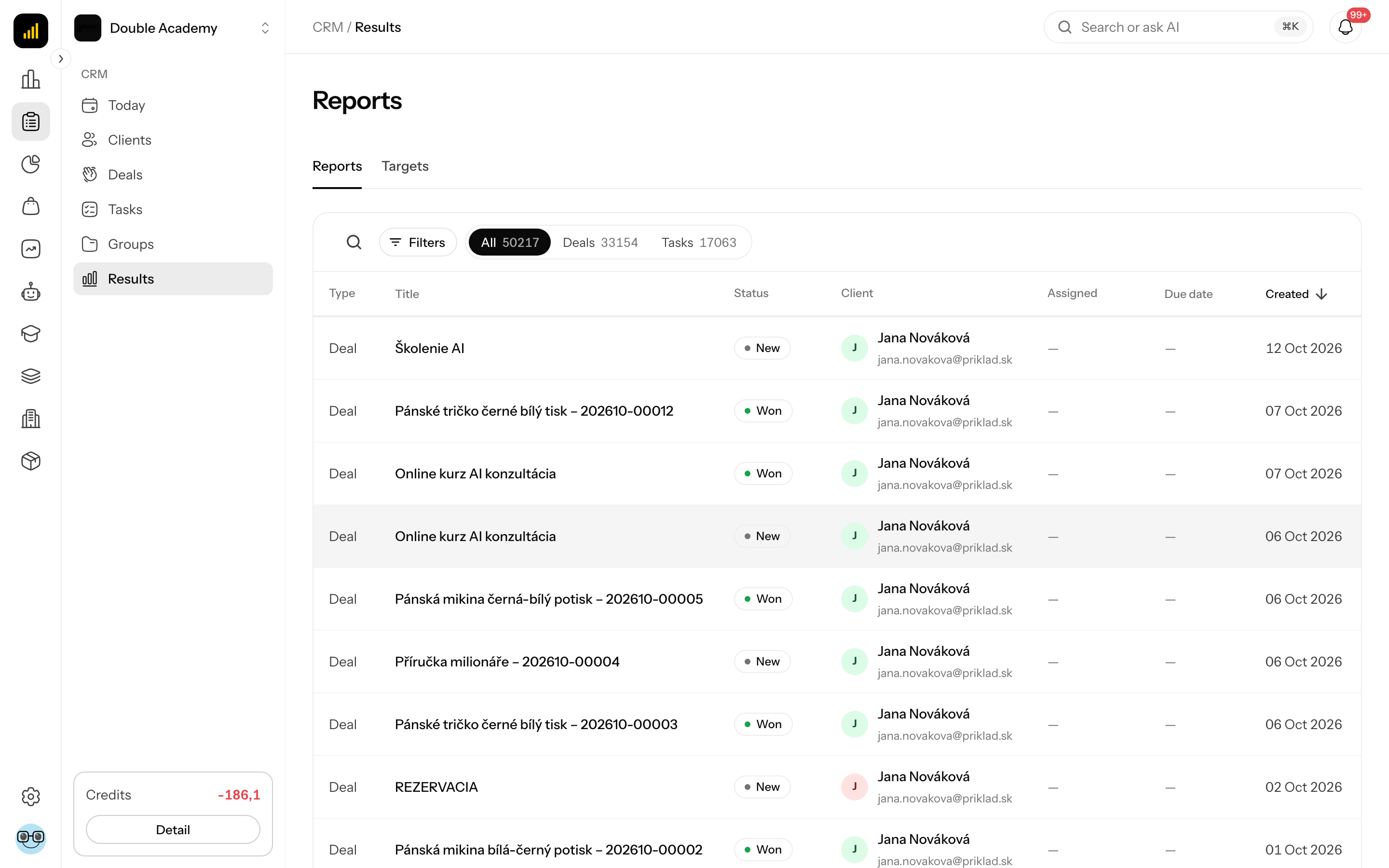
What I see in Reports
Tabs above the table (the number is the number of records):
| Tab | What it shows |
|---|---|
| All | deals and tasks |
| Deals | deals only |
| Tasks | tasks only |
Table columns:
| Column | What it means |
|---|---|
| Type | Deal or Task (only on the All tab) |
| Title | the name of the deal or task |
| Status | the status of the deal (e.g. Negotiation) or the task (e.g. In Progress) |
| Client | the client the record belongs to |
| Assigned | the deal owner or the task assignee |
| Created by | who entered the task (only on the Tasks tab) |
| Due date | the expected close of the deal or the task's due date |
| Created | creation date |
Click the Due date or Created header to change the sorting (newest first by default). Below the table is pagination (10 rows by default).
How to filter Reports
- Open CRM → Results (the Reports screen).
- At the top choose the All, Deals or Tasks tab. Changing the tab clears the status and due date filters.
- To search, click the magnifier icon Search – it searches only the deal name and the task title (not the client name; pick the client with the Client filter).
- Click Filters. The Filter data window opens.
- Set the filters according to the table and click Done.
| Filter | What it is for |
|---|---|
| Assigned | records of one team member (only if you have the View right on the whole team's deals or tasks) |
| Client | everything around one client |
| Deal status | click the chips to select one or more statuses (not on the Tasks tab) |
| Task status | the chips To Do, In Progress, Done (not on the Deals tab) |
| Created – From date / To date | by creation date |
| Due date – From date / To date | by due date |
If From date is later than To date, the field shows Invalid range.
Active filters are shown as chips under the bar. Reset cancels them all – useful when you get lost in the filters and nothing is shown.
How to open a deal or task from Reports
- Open CRM → Results.
- Click a row.
- For a deal its detail opens (timeline, notes, tasks, sale), for a task the task detail.
The procedures in the detail are in the Deals and Tasks chapters. After a change in the detail, reload the page so the change shows in the Reports table.
WARNING
The task detail opened from Reports does not show the task description, even when the task has one. Read and edit the description in CRM → Tasks.
Who can do this
Permissions are set by an administrator in Organization → Permissions, CRM module – see Permission matrix.
- The Results item and the Reports screen are visible to those with the View right on the Reports row.
- What you see in Reports depends on the rights on the Deals and Tasks rows: with the Own right you see only your records, with View the whole team's records. Without a right to both deals and tasks, the Reports table stays empty.
Common questions and problems
I do not see Results in the menu. You lack the View right on the Reports row.
The Reports table is empty although records exist. Check the active filters (Reset). If that does not help, you have no right to either deals or tasks (or to the type you selected with the tab) – the screen then shows no message, only an empty table.
I do not see the Assigned filter. You have only the Own right – you see only your own records.
Can a Report be exported? The Reports screen has no export. Export deals in CRM → Deals with the Export CSV button.
Related
- Deals – working with deals and export
- Tasks – working with tasks
- Targets – the other part of the Results screen
- Financial reports – revenue and turnover