Assistants
What it is for
In Assistants the organization builds its own AI assistants that answer from your knowledge bases — the documents, texts and web pages you uploaded to Doubleros. An assistant can, for example, help customers choose a course, answer the team's questions about internal procedures, or ask targeted questions and prepare an assessment.
Doubleros manages the models, API keys and technical settings. You define the purpose, sources and behavior.
The process in short: prepare a knowledge base → create the assistant → try its answers → refine it → enable (publish) it → members chat with it.
Where to find it
In the left menu click AI and then Assistants.
Assistants are also listed in AI → Settings, where they are managed (pausing, deleting) — see AI settings.
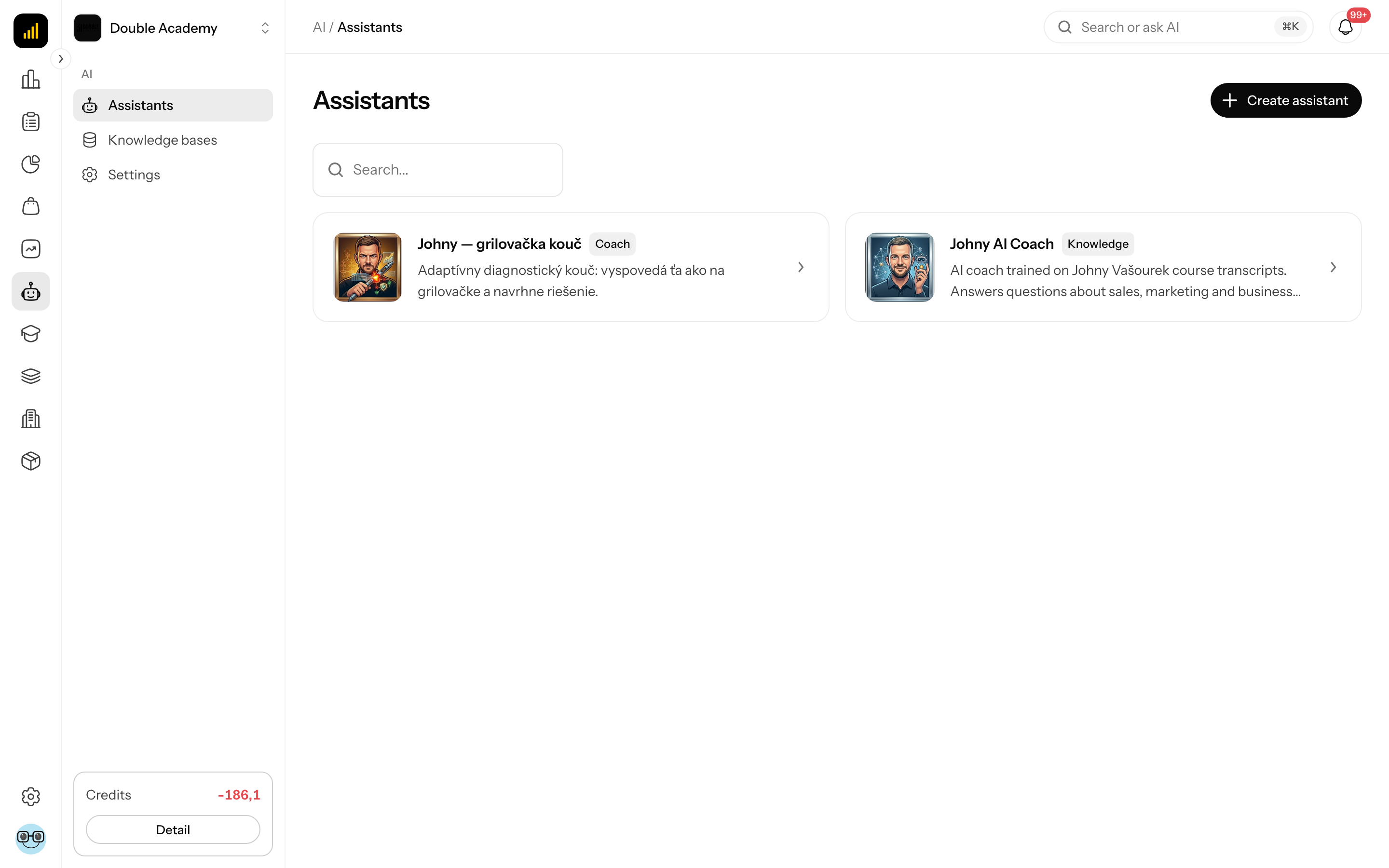
What I see on the Assistants screen
The AI → Assistants screen is the list of assistants you can chat with:
| Element | Where | What it does |
|---|---|---|
| Create assistant | top right | opens the new assistant form (only with the permission to create assistants) |
| Search | above the list | filters assistants by name |
| Assistant card | in the grid | image, name, type label, description (or "—"), possibly the Web search label; click the card to open the chat |
| Pagination | below the list | shown when there are more than 10 assistants |
Only enabled (published) assistants are listed. Find a draft, ready-to-test or paused assistant in AI → Settings.
Which assistant types exist
When creating an assistant you choose one of two types:
| Type | How it works |
|---|---|
| Conversational assistant | answers questions and holds a natural conversation using your sources (default type) |
| Questionnaire and diagnostic assistant | first gathers the required information, then produces an outcome using your sources |
Older assistants, created before the setup guide existed, may carry the label Custom, Managed, Coach, Diagnostics or Knowledge on their card. You can no longer create new assistants of these types in the app.
Before you create an assistant
Before you start, at least one knowledge base with at least one processed source must exist. Without it the form shows "First add and process at least one high-quality source." and the Create and try button is disabled.
- Prepare the knowledge in AI → Knowledge — the steps are in Knowledge.
- Wait until the sources are processed. Sources still awaiting review are not used by the assistant.
- Check that you have the AI → Assistants → Create permission (and Edit for further changes).
The whole chain from an empty knowledge base to a finished assistant is in How to set up an AI assistant with your own knowledge base.
How to create an assistant
- In the left menu click AI → Assistants.
- Top right, click Create assistant. The page Create an assistant from your sources opens.
- In the 1. Select knowledge bases card open the Attached knowledge field and tick one or more bases. Only bases that already have a ready source are listed.
- If you have just prepared a base in another tab and don't see it, click Refresh list. The Manage knowledge sources button opens Knowledge in a new browser tab.
- In the 2. What should it help with? card fill in What should the assistant do?, for example "Help customers choose a course and answer questions about its content."
- If you want a diagnostic assistant, click More settings and in the What kind of assistant do you need? field choose Questionnaire and diagnostic assistant.
- Click Create and try (bottom right).
| Field | Required | Meaning | Limits / default |
|---|---|---|---|
| Attached knowledge | yes | knowledge bases the assistant answers from | 1 to 20 bases; only bases with a ready source |
| What should the assistant do? | yes | the assistant's purpose in your own words | at most 1,500 characters |
| What kind of assistant do you need? (under More settings) | no | assistant type | default Conversational assistant |
What happens after Create and try: an assistant is created in the Draft status and its workspace opens. The assistant's name is filled from the beginning of the purpose, the response language from the language the app is currently switched to. A conversational assistant is ready to try straight away; a diagnostic one needs its diagnostic workflow filled in.
Only you see a draft assistant — other members will not see it until you enable it.
How to check it worked: the workspace shows the Test replies tab. Ask a question whose answer is in your sources.
What I see in the assistant workspace
The workspace opens after you create an assistant and whenever you edit one. It has these parts:
| Part | Where | What it contains |
|---|---|---|
| Buttons at the top | top right, next to the heading | Enable assistant (Publish changes when editing an already enabled one), Edit, Open live chat |
| Chat | left | the Test replies tab (test chat) and the Edit with AI tab (a conversation that changes the assistant) |
| Settings | right (on a phone in the Settings tab at the top) | the assistant's fields in the Basic details, Knowledge and sources, Assistant behavior and External OpenAI template sections, below them the Versions and comparison and Answer quality checks panels; the Save button is at the bottom |
The Enable assistant button is disabled while required data is missing (name, purpose, audience, outcomes). Hover over it to see what to fill in. While you have unsaved changes in Settings, the buttons are disabled — click Save first.
How to try the assistant's answers
- In the assistant workspace click the Test replies tab.
- Type a test question and send it.
- Read the answer. If the assistant has Show source links switched on, you will see Sources under the answer — the documents and passages it drew on.
The test conversation does not change the assistant's settings. You always test the current draft, not the live version.
How to refine the assistant through chat
You can edit the assistant by telling it what you want to change — the setup guide writes the change into the draft.
- In the assistant workspace switch to the Edit with AI tab in the chat.
- Read the short description above the chat and write what the assistant should do or what you want to change.
- In the Write your answer or request a change... field write, for example "Answer more briefly and always offer a link to the course at the end." A message can have at most 4,000 characters.
- Send the message. The design is saved as you go and you see the changes in the Settings panel on the right.
- Switch to Test replies and check that the assistant behaves as you want.
If "The AI service is temporarily busy or unavailable…" appears, your draft is saved and the unsent message remains in the input. Send it again shortly or make the change in the Settings panel.
How to edit the assistant's settings
- In the assistant workspace use the Settings panel on the right (on a phone open the Settings tab at the top). The panel is always open — it is not a window.
- Fill in or change the fields. The Basic details, Knowledge and sources, Assistant behavior and External OpenAI template sections expand and collapse; a section with an error stays visible. Knowledge and sources is expanded right away; External OpenAI template only if a template is set.
- Click Save at the bottom. "Assistant settings saved" appears. Next to the button you can see whether you have unsaved changes.
For an already enabled assistant first click Edit at the top right — a new draft is created. Until then the panel is read-only.
| Field | Required | Meaning | Limits / default |
|---|---|---|---|
| Name | yes | the assistant's name on its card and in the chat | at most 100 characters |
| What should the assistant do? | yes | purpose | at most 1,500 characters |
| Attached knowledge (section Knowledge and sources) | yes | knowledge bases | at most 20 |
| Thumbnail image | no | image on the assistant card | image, at most 10 MB |
| Description | no | short description on the card | at most 500 characters |
| Intended audience | yes | who will talk to the assistant | at most 1,000 characters |
| Expected outcomes (section Assistant behavior) | yes | what the assistant should achieve | each outcome on a separate line |
| Rules and instructions | no | how it should proceed | each rule on a separate line; at most 200 rules, each up to 1,000 characters (split a long rule across lines) |
| Boundaries and restrictions | no | what it must not do or say | each item on a separate line |
| Communication tone | yes | for example professional, friendly, or concise | at most 100 characters; default "professional and friendly" |
| What to do when the answer is unknown | yes | behavior when the sources do not contain the answer | at most 500 characters; default "Say clearly when the attached sources do not contain enough information." |
| Temperature | no | lower = more restrained and predictable answers, higher = more freedom | 0 to 2, step 0.1; default 0.2 |
| Web search | no | the assistant may also search the web | off by default |
| Response language | yes | the language the assistant must answer in | Slovak, Czech, English |
| Show source links | no | answers show links to the documents and passages they used | on by default |
The External OpenAI template section is optional. A template supplements the assistant's instructions and its content is managed in OpenAI. An empty ID means the assistant uses only the settings in Doubleros.
| Field | Required | Meaning | Limits |
|---|---|---|---|
| Template ID (pmpt_…) | no | the identifier of the template in OpenAI | must start with pmpt_; at most 200 characters |
| Version (empty = current) | no | a specific template version | empty field = current version |
A diagnostic assistant also has the Diagnostic workflow section:
| Field | Required | Meaning | Limits |
|---|---|---|---|
| Diagnostic objective | yes | what the assistant should find out and assess | at most 1,000 characters |
| Information it must collect | yes | what it should ask the user | each item on a separate line |
| Completion rule | yes | when it should stop asking and produce the outcome | at most 1,000 characters |
How to enable (publish) the assistant
Before you start: the design must be complete (the Enable assistant button is not disabled), you must have no unsaved changes in the Settings panel, all attached sources must be processed and you need the AI → Assistants → Edit permission.
- In the assistant workspace try the answers in the Test replies tab.
- At the top right click Enable assistant (when editing an already enabled assistant it is Publish changes).
- "Assistant published to the organization" appears and Open live chat shows at the top right.
What happens: the assistant moves to the Published status and appears in AI → Assistants for every member who has the permission for conversations with assistants. Each publication is saved as a new version.
An assistant in the Ready to test status can also be enabled from AI → Settings with the Publish to organization button.
How to check it worked: click Open live chat at the top right, or open AI → Assistants — the assistant must be listed. Ask a colleague to open it too.
Which statuses an assistant has
| Status | Meaning | Who sees the assistant |
|---|---|---|
| Draft | the design is still being set up | only the person who created it |
| Preparing | the assistant is being prepared | only the person who created it |
| Ready to test | the draft is confirmed and can be tested and published | only the person who created it |
| Published | the assistant is enabled, members chat with it | everyone with the conversations permission |
| Paused | the assistant is off, live conversations don't work | only its creator (in AI → Settings); not in AI → Assistants |
The Unpublished draft label in AI → Settings means a confirmed draft of changes exists for the assistant that has not been published yet.
How to change an assistant that is already enabled
Changes to an enabled assistant are made in a new draft. The live assistant changes only after publishing.
- In the left menu click AI → Settings.
- Next to the assistant click Edit. The workspace opens with a new draft (if a draft in progress already exists, that one opens).
- Make the changes in the Settings panel (do not forget Save) or in the Edit with AI tab.
- Try the answers in Test replies.
- Click Publish changes.
If "The live configuration changed or this is a legacy draft…" appears, someone changed the assistant in the meantime. Use Edit in AI → Settings to open the current version and transfer your changes; the original draft is preserved.
A change to a knowledge base's content (a new or updated source) applies, once processed, to every assistant using that base — without publishing a draft.
How to compare the draft with the live version and restore an older version
- In the assistant workspace scroll the Settings panel on the right down.
- Expand the Versions and comparison panel.
- For each changed item you see Live configuration and Draft side by side. If they are the same, "The draft matches the live configuration." is shown.
- The Latest 50 published versions section lists older versions (Version 1, Version 2…).
- Next to the version you want to return to, click Restore as a new draft.
- A new draft opens with that version's content. Try it and click Publish changes.
Restoring publishes nothing by itself — the live assistant changes only once the new draft is published.
How to check the quality of answers
The Answer quality checks panel compares the assistant's answers with the answers you expect. It works for an active Conversational assistant with a knowledge base and source display switched on. The grading is done by AI and is not a guarantee of truth.
How to add a test question:
- In the workspace scroll the Settings panel on the right down and expand Answer quality checks.
- Click Add a test question.
- In the window fill in Question (at most 2,000 characters) and Expected answer (at most 6,000 characters — the correct facts, or an expected refusal when the sources do not contain the answer).
- Optionally choose Expected sources (optional) — the test checks whether retrieval found every selected source (at most 20).
- Save. Remove the question later with Remove.
How to run the evaluation:
- In the panel choose what to evaluate: Saved draft (the current draft) or Live assistant.
- Click Run evaluation.
- Confirm the window — the run consumes credits and generates an answer and assessment for each question.
- The run appears in the list with the status Queued, Running, Completed or Failed — start a new run and with the number of passed questions (e.g. 8/10). The latest 20 runs are shown.
A run must contain 1 to 50 questions. While an evaluation is running, Run evaluation is disabled.
How to chat with an assistant
Before you start: the assistant must be enabled (Published) and you need the AI → Assistants → Conversations permission (Own or View).
- In the left menu click AI → Assistants.
- Click the assistant's card. The chat opens.
- If the assistant works with variables, a Variables section appears above the input field — fill in the values in the "enter value..." fields.
- Type your question in the Write a message... field and send it.
The chat screen has your list of conversations on the left with the New conversation button (on a phone open it with the icon in the chat header; the button is disabled until you send the first message in a new chat), the chat in the middle and a panel with information about the assistant on the right: Assistant (image, name, type, description), Model (only if the assistant has one set) and Knowledge bases (with the permission to view knowledge bases the names link to their detail).
If the assistant has sources switched on, under the answer there are Sources with the passages it drew on and the Retrieved source match value. You can also dictate a message with the Record voice microphone.
Conversations consume the organization's AI credits. When they run out, AI credits exhausted appears with the Buy credits button.
How to check it worked: the answer appears in the chat and the new conversation is added to the list on the left.
How to attach a document to a conversation
In a conversation with an assistant you can attach a document, spreadsheet or image for the assistant to analyse. The exception are older assistants labelled Diagnostics — documents cannot be attached to them. A Questionnaire and diagnostic assistant created with the setup guide supports attachments.
- In the chat with the assistant click the paperclip icon Attach a document, spreadsheet or image next to the input field.
- Choose one or more PDF, DOCX, TXT, MD, SRT, VTT, CSV, XLSX, PNG, JPG or WEBP files.
- Wait until Reading document… disappears. The attachment is sent with your next message.
- Write what the assistant should do with the document and send it.
Limits: up to 5 files, 10 MB each and 120,000 characters of text in total. The extracted text is saved only for this conversation. Click an attachment to view its text.
How to rename or delete a conversation
- In the chat with the assistant find the conversation in the list on the left.
- Hover over it — the Actions button appears at the right of the row (for the open conversation it is always visible). Click it.
- Choose Rename, in the Rename dialog enter the new name (the "Conversation name" field) and click Save (or press Enter) — or choose Delete and confirm in the "Are you sure want to delete" dialog.
You see Rename only with the permission to edit conversations and Delete only with the permission to delete conversations. Deleting a conversation cannot be undone.
Who can do this
Permissions are set in Organization → Permissions in the AI → Assistants row and the Conversations row below it:
| What | Required permission |
|---|---|
| See AI → Assistants in the menu | Conversations: Own or View, or Assistants: View or Create |
| Open a chat with an assistant | Conversations: Own (own conversations only) or View |
| Rename a conversation | Conversations → Edit |
| Delete a conversation | Conversations → Delete |
| Create an assistant | Assistants → Create |
| Edit, test, enable, manage versions and quality checks | Assistants → Edit |
| See knowledge bases when creating | in the AI module the knowledge bases row (Knowledge bases) → View |
Common questions and problems
The Create and try button is disabled. You have no knowledge base with a ready source. Prepare one in AI → Knowledge, then click Refresh list.
When creating, "Select at least one ready knowledge base" appears. You did not select any base in the Attached knowledge field.
I don't see the Create assistant button. You lack the AI → Assistants → Create permission.
The message "All attached knowledge sources must finish processing before the assistant can be tested or published." appeared. A source in an attached base is still being processed. Wait for it to finish in AI → Knowledge.
The message "The assistant design is incomplete…" or "Finish and test the assistant design before publishing it." appeared. Fill in the required data in the Settings panel (name, purpose, audience, outcomes).
The message "The draft changed in the meantime. Refresh the page and try again." appeared. Someone else edited the draft or you had it open in two tabs. Refresh the page.
I created an assistant but my colleague does not see it in AI → Assistants. The assistant is not in the Published state — only the author sees draft and paused assistants. Click Enable assistant. If it is enabled, your colleague lacks the conversations permission.
The quality check reports "Evaluation requires an active conversational knowledge assistant with source display enabled." The check does not work for a diagnostic assistant or for an assistant with Show source links switched off.
The Attach a document, spreadsheet or image button is missing or disabled. Documents cannot be attached for older assistants labelled Diagnostics. It is disabled when 5 files are already attached or the assistant is answering.
Related
- Knowledge — the sources assistants answer from
- AI settings — managing, pausing and deleting assistants
- How to set up an AI assistant with your own knowledge base
- Ros (AI helper) — the built-in Ros
- AI credits — credit usage
- Permission matrix