Permission matrix
What it is for
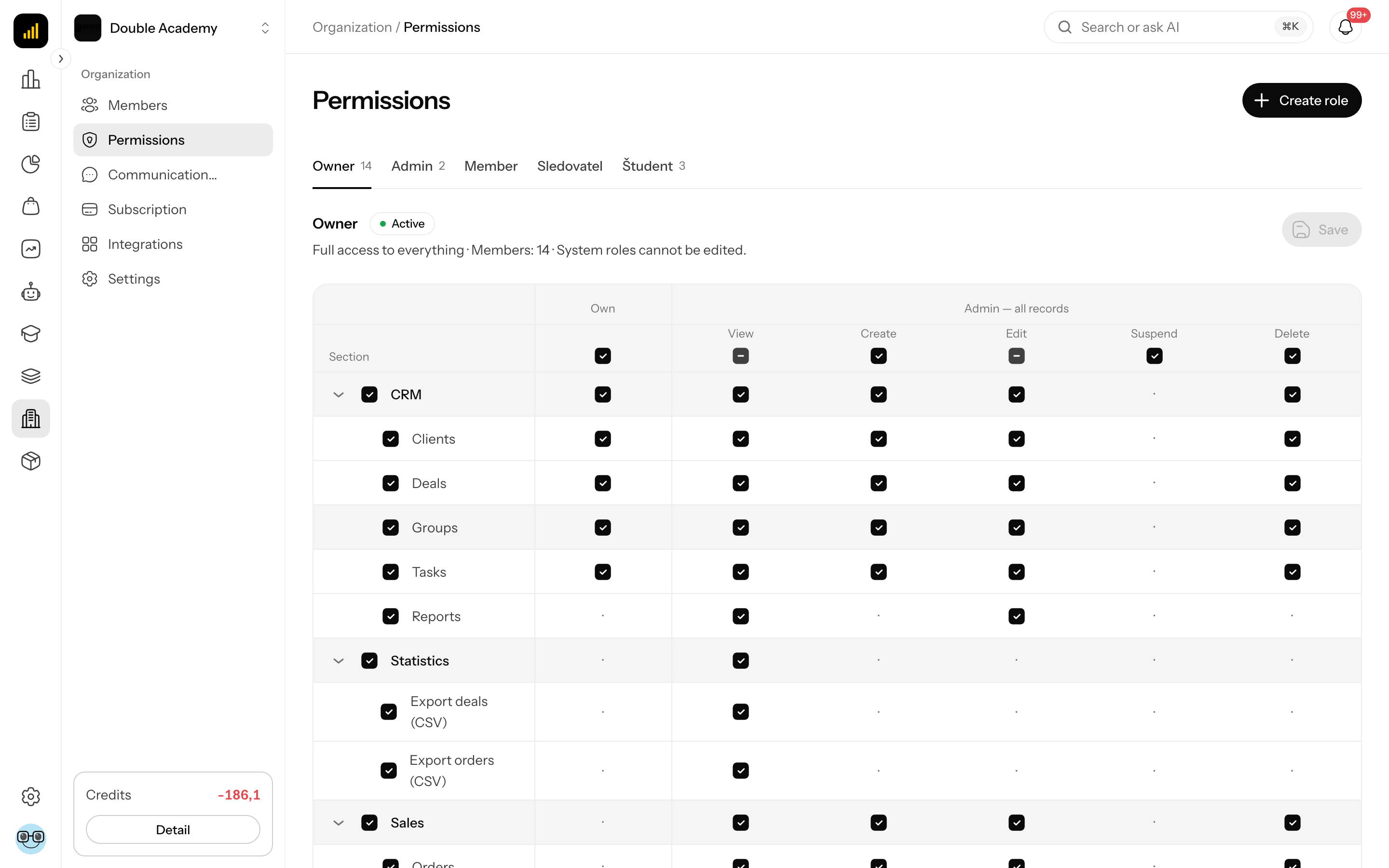
The Permission matrix is the panel of a role on the Permissions screen where you choose what a particular role may do. Rows are the items of the left menu, grouped the same way; for each one you pick a level: No access, View only or Can work. You no longer tick individual rights such as view, create or delete.
The setting controls not only what a member sees in the menu but also what the server, Ros (AI helper), Telegram and AI apps over MCP will let them do.
Where to find it
- In the left menu, click Organization → Permissions.
- In the table of roles, click a role's row (or ⋮ → Permissions in its row).
- A panel with the role's screens slides in from the right.
Everyone who sees the Permissions screen can open the panel. You can change the choices only if you Edit content on the Permissions screen; otherwise the panel is read-only and has just Close.
Before you start
- The role whose permissions you set must exist — see How to create a new role.
- The system role Owner cannot be changed (it always has everything).
- The panel offers only the screens of the modules included in your organization's plan (see Subscription). The screens of the Organization group are always there.
- You can give a role only what you have yourself: a level higher than the one your own role holds on a screen is refused when you save.
How to read the panel
Each group of the left menu is a card. Its header holds the group name and, above the three columns, the titles No access, View only and Can work. Below, every menu item is a row with its name, a one-line description of what the chosen level allows (for No access: "Not shown in the menu.") and one choice per column.
| Column | What it allows |
|---|---|
| No access | the member does not see the menu item and the server refuses its data |
| View only | the member opens the screen and sees its records and settings but cannot change them |
| Can work | the member also creates, changes and deletes; includes everything View only allows |
Exactly one choice per row is selected. A dash — instead of a choice means the screen has no such level (for example reports only View only, and personal screens such as Learner area or My workbooks only Can work); hover over it for "This screen has no such level."
Clicking a column title in the card header (for example View only) sets the whole group. A screen that does not have that level gets its nearest one when you pick Can work for the group; picking View only leaves such a screen unchanged.
There is no Own level
Can work always means all records of the organization. The old Own (work only with records assigned to you) is gone. Roles that had Own for CRM sections before the change now have Can work there. Other members' AI conversations are no longer granted by any screen: the Assistants screen under AI lets a member chat with published assistants and see only their own conversations.
Some screens also give what they need next to them — for example a deal screen lets the member pick clients, products and colleagues. You do not set that separately.
How to set a role's permissions
Before you start: you need Can work on the Permissions screen.
- In the left menu, click Organization → Permissions.
- In the table of roles, click the row of the role you want to set. A panel with the role's screens slides in from the right.
- Find the card of the group (for example CRM) and the row of the menu item.
- Click the choice in the column you want — No access, View only or Can work. To set a whole group, click the column title in the card header.
- If needed, switch Active in the panel header.
- At the bottom of the panel, click Save. The panel closes.
The message Permissions updated successfully appears. Saving replaces all the role's previous screens with what is chosen now. The change applies to every member with the role on their next action or page load.
WARNING
If you close the panel (Cancel, the cross or a click outside it) without clicking Save, your choices are lost.
How to check it worked
After refreshing the page, a member with this role sees in the left menu exactly the items where they have View only or Can work, plus Dashboard, which every member sees. They see create, edit and delete buttons only on screens where they Edit content. A screen set to View only opens read-only: a Read only badge sits under the heading, the buttons that change things are missing and form fields are locked.
On a phone
On a narrow screen the same cards are shown with narrower columns; you choose and save the same way with Save.
Overview of screens
The panel has these groups and screens (in panel order). Groups of modules your plan does not include are not in the panel. "Both" means View only and Can work are offered.
| Group | Screen | Levels offered |
|---|---|---|
| CRM | Today | only Can work |
| Clients | both | |
| Deals | both (Can work also exports deals to CSV) | |
| Tasks | both | |
| Groups | both | |
| Results | both (Can work = setting sales targets) | |
| Statistics | Finance, Sales, Salespeople, Membership | only View only |
| Sales | Orders | both (Can work also exports orders to CSV) |
| Payment reminders | only View only | |
| Exports | both | |
| Products, Categories, Attributes, Discount Codes, Settings | both | |
| Ambassador | My ambassador section | only Can work |
| Referrals, Purchases, Payouts, Users, Settings | both | |
| Content | Projects | both (websites, funnels and forms of a project) |
| AI | Assistants | only Can work (chat with published assistants, own conversations) |
| Knowledge bases | both | |
| Settings | both (Can work = create, publish and delete assistants) | |
| Agents | Mail and voice agents | both (Can work = approve and send replies, handle calls) |
| Agent settings | both | |
| Membership | Learner area | only Can work |
| Courses and videos | both | |
| Members | both (Can work = grant and remove course access) | |
| Results | only View only | |
| Settings | both | |
| Bootcamp | My workbooks | only Can work |
| Manage Bootcamp | both | |
| Live events | Events | both (View only = attend; Can work = create, broadcast, moderate) |
| Recordings | both | |
| Organization | Members | both (Can work = invite, change roles, suspend, remove) |
| Permissions | both | |
| Communication channels | both (View only = connect your own Telegram and AI apps; Can work = manage channels for the whole organization) | |
| Subscription | both | |
| Settings and integrations | both |
What each level allows in Members, Permissions and Subscription is spelled out in Members, Permissions and Subscription.
Rights named in other chapters
Other chapters of this manual may still name a right as a section and an action, for example "Clients → Edit" or "Agent settings → Edit". Find the screen and read the action as a level: View is View only; Create, Edit, Delete, Suspend and Own are Can work. Old section names map to screens like this:
| Old name | Screen now |
|---|---|
| CRM → Reports | CRM → Results |
| Statistics (View), Export orders (CSV) | Statistics → Finance, Sales, Salespeople, Membership; export of orders is part of Sales → Orders at Can work |
| Export deals (CSV) | CRM → Deals at Can work |
| Ambassador → Personal ambassador section | Ambassador → My ambassador section |
| AI → Assistants (create, edit) | AI → Settings at Can work |
| AI → Assistants → Conversations | AI → Assistants |
| Agents → Requests, Approvals and sending | Agents → Mail and voice agents |
| Agents → Agent settings | Agents → Agent settings |
| Membership → Learning and my courses | Membership → Learner area |
| Membership → Courses and content | Membership → Courses and videos |
| Membership → Students | Membership → Members |
| Membership → Reports | Membership → Results |
| Bootcamp → Event and participant management, Workbooks | Bootcamp → Manage Bootcamp, My workbooks |
| Content → My Websites, Landing Pages, Funnels, Forms | Content → Projects |
| Organization → Channel settings | Organization → Communication channels |
| Organization → Settings | Organization → Settings and integrations |
Typical setups
The quickest start is the Start from field when you create a role: Sales, Marketing, Support, Lecturer or Student give a ready-made set that you adjust afterwards.
A salesperson: Sales template, or in the CRM group Can work for Today, Clients, Deals and Tasks. There is no way to limit them to their own records.
Sales manager: in the CRM card click the Can work column title (the whole group), optionally add the Statistics screens at View only.
Course lecturer: Lecturer template, or in Membership Courses and videos at Can work and Members at View only.
Accountant: in Sales, Orders at Can work (it includes the CSV export); in Statistics, Finance and Sales at View only.
Who can do this
Only a member who Can work on the Permissions screen saves changes in the panel. Everyone who sees the screen can read it. The Owner role always has everything and its panel is read-only.
Common questions and problems
A member says they see nothing although the screen is theirs. Check that View only or Can work is chosen — with No access the item does not appear in the menu. Then check that their role is Active and that nobody suspended their access (the Access column in Members).
A member could only edit their own clients before and now edits all. That is how the change works: Can work always means every record; the Own level no longer exists.
A whole group (for example Sales) is missing from the panel. Your plan does not include it. See the plans in Subscription.
The choices are grey and cannot be changed. You have the system role Owner open, or you only View only on the Permissions screen.
After saving, the error "Unknown screens or levels: …" appears. This is a technical error (a screen or level the app does not know). Refresh the page and save again; if it persists, report it.
After saving, the error "You cannot grant more than you have yourself: …" appears. The listed screens are above your own level. See Permissions.
Does the matrix control the AI assistant and Ros too? Yes. Ros (AI helper) and Communication channels never do anything the member has no permission for. Roles and permissions also cannot be changed through AI or MCP — only on this screen.
Grant permissions sparingly. Adding a permission takes one click; deleted data of others cannot be brought back.
Related
- Permissions — creating and managing roles
- Members — giving a role to a person
- Subscription — the plan decides which modules the matrix offers
- Ros (AI helper) — Ros and permissions