Results
What it is for
The Results screen in Membership administration shows how the courses are used — how many people are in each course, how far they have got, which variant they bought access in and until when they have it.
Where to find it
- In the left menu, click Membership (the academic cap icon).
- Click Membership administration.
- In the tabs under the heading click Results.
You can also open a specific course's report from the course editor with the Results button at the right of the header (see Courses & bundles).
The Results item is visible only to someone with the permission Reports → View.
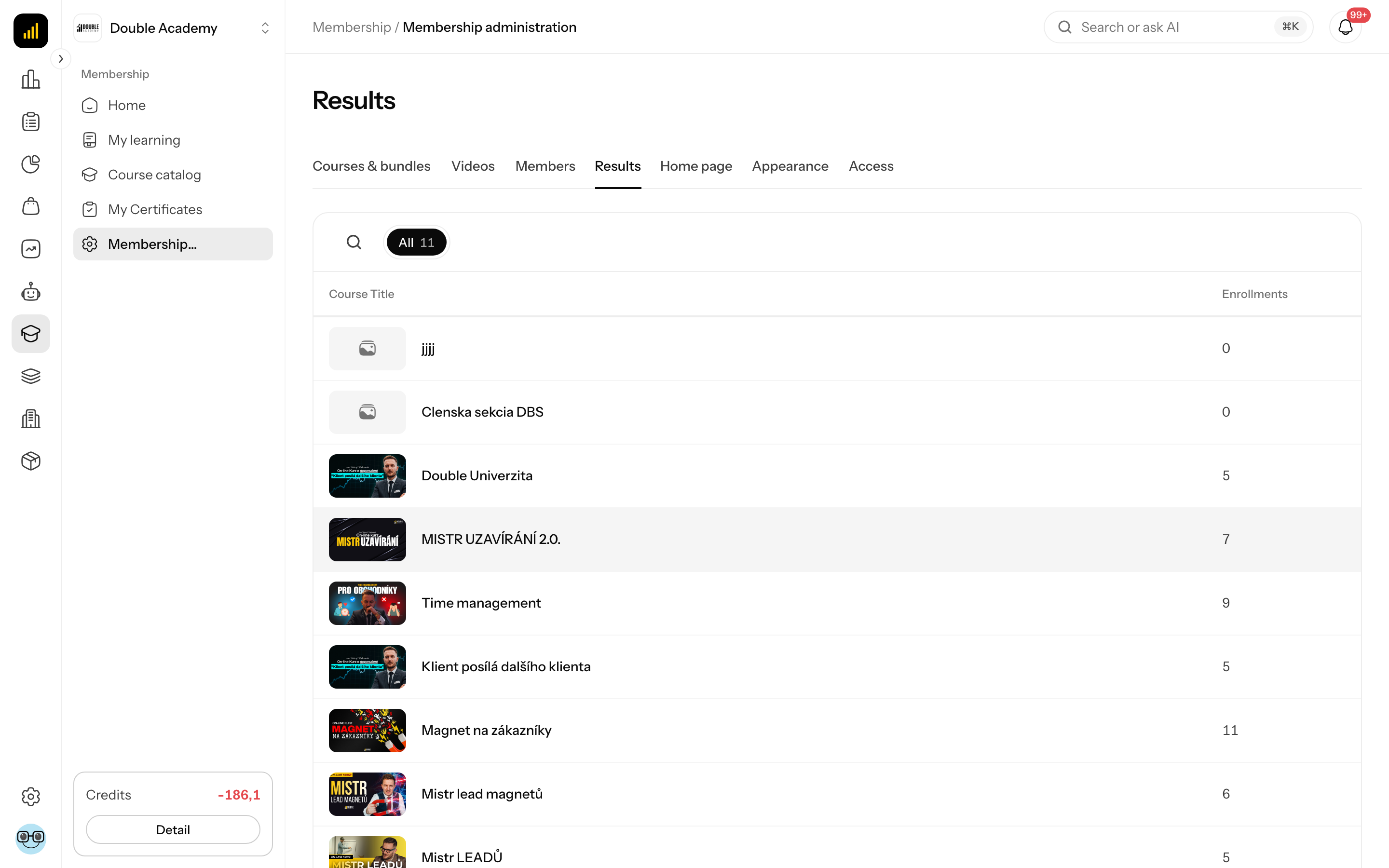
What I see on the screen
The Results screen (heading Membership · Results) is a table of courses:
| Column | What it means |
|---|---|
| Course Title | the course |
| Enrollments | how many people have access to the course |
Above the table is the All tab with a count and the Filters button with a search by title. Below the table is pagination.
How to view a course report
- On the Results screen, click a course row.
- The course report opens (path Membership → Reports → course title) with a table of students:
| Column | What it means |
|---|---|
| Name | the student's name; Not specified if there is none |
| the student's email | |
| Variant | the product variant they have access in (only if you sell the course in more than one variant); No variant = access without a purchase (assignment, automation, bundle) |
| Progress | percentage of completed lessons |
| Status | enrollment status (Active, Completed, Revoked, Expired) |
| Enrolled at | when the access was created |
| Access period | until when the access is valid, or Lifetime |
- If you sell the course in several variants, there are tabs above the table: All, the individual variants and No variant — they filter students by what they bought.
- The Filters button opens a search by name and email.
How to see one student's progress
- In the course report, click a student's row.
- The Student progress panel slides in from the right with Progress (percentage), Lessons (completed out of the total), Status and Enrolled at.
- The Open profile button takes you to the user's detail with all their courses.
What to read from the numbers
Many enrollments with low progress usually do not mean a bad course but a hard start. Look at the lesson where people stop and try splitting or shortening it. Where people stop watching a video is shown in the video statistics.
Who can do this
Permission matrix, module Membership, row Reports → View. Changing students' access requires permissions in the Students row — see Members.
Common questions and problems
The report has no Variant column. The course is sold in at most one variant, so the split would tell you nothing.
I want to extend a student's access. That is done in Members, not in Results.
Related
- Members — assigning and changing access
- Courses & bundles — improving the content based on findings
- Video library — video viewing statistics