First-run setup wizard
What it is for
The Welcome to Doubleros screen is the first thing you see after signing in if you do not yet belong to any organization. Here you decide whether to create your own organization or join an existing one with an invite code. You cannot work in the app without an organization — all data (clients, products, projects, courses) always belongs to an organization.
Where to find it
- The screen appears by itself after signing in as long as you are not a member of any organization. Until you have one, the app brings you back here from any other page.
- If you already have an organization and want to join another: organization switcher at the top of the sidebar panel → Join an organization. In that case the screen shows only the Join an organization part.
- You create another organization from the organization switcher → Create organization.
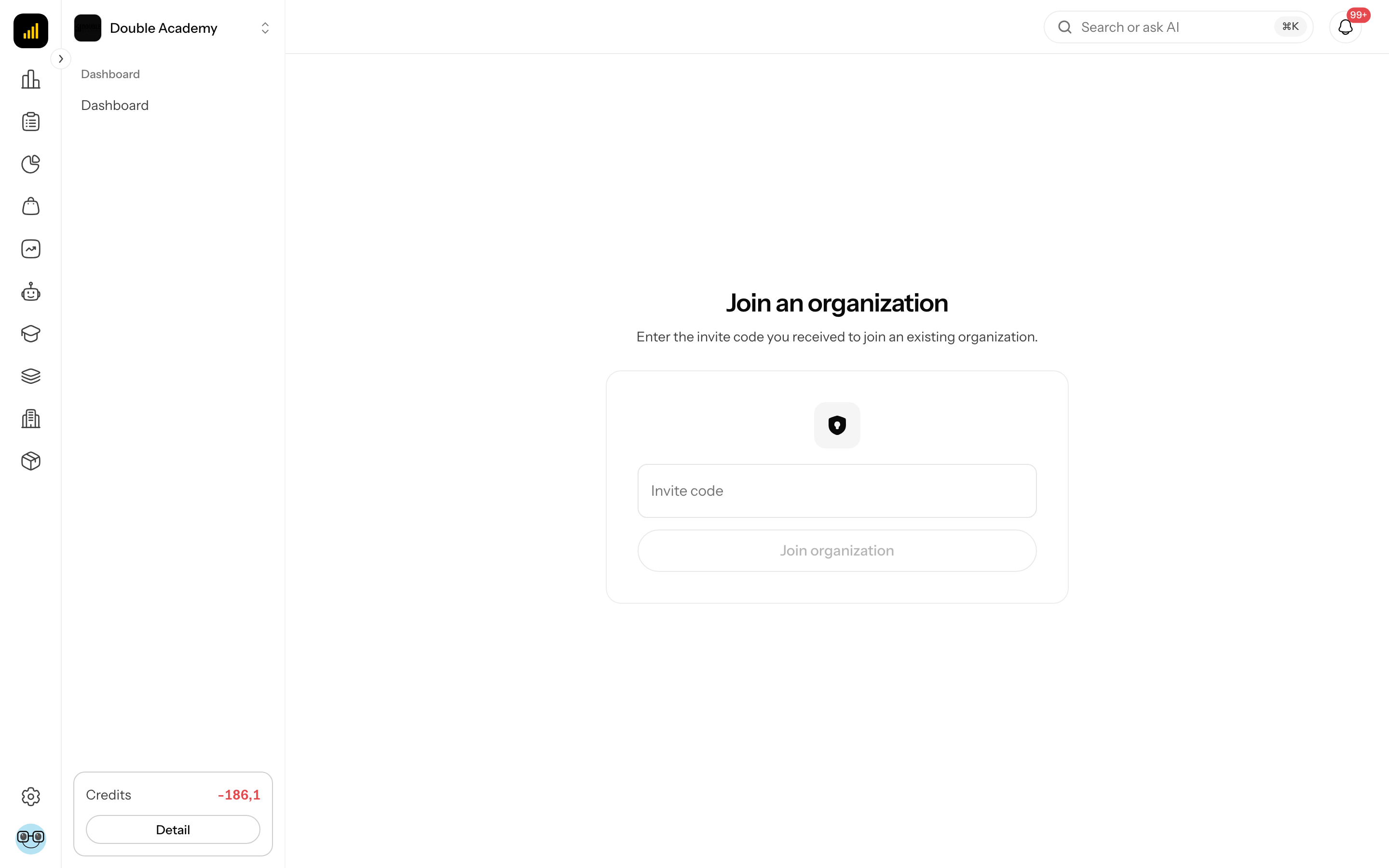
What I see on the Welcome to Doubleros screen
The Welcome to Doubleros screen has two cards side by side:
| Card | What it contains |
|---|---|
| Create organization | the text Set up your own workspace and invite your team members. and the Create organization button |
| Join an organization | the Invite code field (example e.g. abc123xyz) and the Join organization button |
How to create an organization
Before you start:
- You must be signed in with a verified e-mail — see Sign-up and e-mail verification.
- Have the organization name and the company's billing details ready (address, phone, contact e-mail).
- You do not need a payment card — none is entered when creating an organization and nothing is charged.
Steps:
- On Welcome to Doubleros, in the Create organization card click Create organization (or anywhere on the card). If you already have an organization, click Create organization in the organization switcher.
- The Create organization window opens with five steps: Basic info, Localization, Billing details, Notifications, Integrations.
- Fill in Basic info (table below) and click Next.
- Fill in Localization and click Next.
- Fill in Billing details and click Next.
- In Notifications add e-mails for alerts (optional) and click Next.
- In Integrations set up a payment gateway and invoicing (optional) and click Create.
Back returns one step. The cross at the top right closes the window — entered data is discarded. If a required field is missing in a step, Next does not let you continue and the field shows an error.
Basic info step
| Field | Required | What it means | Limits / default |
|---|---|---|---|
| Organization name | yes | what the organization is called in the app (e.g. My company Ltd.) | max. 255 characters |
| URL identifier (slug) | yes | part of the organization's public addresses (e.g. my-company) | filled in from the name; only lowercase letters without accents, digits and hyphens; max. 100 characters; must be unique; cannot be changed after creation |
Localization step
| Field | Required | What it means | Limits / default |
|---|---|---|---|
| Default language | yes | main content language of the organization | Čeština by default; choose from Slovenčina, Čeština, English, Deutsch, Magyar, Polski |
| Supported languages | yes | languages your content will be in | at least one; Čeština by default |
| Default currency | yes | main price currency | CZK by default |
| Supported currencies | yes | currencies you will sell in | at least one; changing the default currency resets it to that currency — add others manually |
Decide on currencies now
A product price is entered separately for each supported currency. A currency added later has to be filled in on every existing product. Currencies and languages can be changed later in organization settings.
Billing details step
Despite the description Billing details (optional). You can fill them in later., these fields are required when creating an organization:
| Field | Required | What it means | Limits / default |
|---|---|---|---|
| Company name | yes | company name on documents | prefilled from the organization name until you overwrite it |
| Company ID | no | company registration number | max. 20 characters |
| Tax ID | no | tax identification number | max. 20 characters |
| VAT ID | no | VAT identification number | max. 20 characters |
| Street | yes | billing address | |
| City | yes | ||
| ZIP code | yes | ||
| Country | yes | prefilled from your location | |
| Phone | yes | company phone | dialling code by country |
| Contact email | yes | company contact e-mail | must be a valid address |
Notifications step
Type an address into Add email (e.g. info@company.com) and press Enter. It is added to the list; add more the same way. Remove an address with the cross next to it. App alerts are sent to these addresses. If you type an address and forget to press Enter, it is added when you click Next.
Error messages: Invalid email format, This email is already added.
Integrations step
The step is optional — everything can be set later in Organization → Integrations.
| Field | Options | What it means |
|---|---|---|
| Payment gateway | None, Stripe, GoPay, Comgate | gateway for card payments; once chosen, fields for the gateway's access details appear (list below) |
| Invoicing provider | None, FAPI, iDoklad, POHODA | the system where invoices are created; for FAPI fill in FAPI Username and API Key, for iDoklad iDoklad Client ID and iDoklad Client Secret |
Fields of each payment gateway:
- Stripe — Stripe Secret Key, Stripe Webhook Secret.
- GoPay — GoPay environment (Sandbox (testing) or Production), GoID, Client ID, Client secret and the checkbox Recurring payments are enabled on my GoPay account.
- Comgate — Merchant identifier, API secret, Test mode and Recurring payments are enabled on my Comgate account.
A detailed guide to the gateways is in Organization → Integrations.
For iDoklad the app notes: After creating the organization, connect its iDoklad account in organization settings. For POHODA: paid orders are exported in Sales → Exports.
What happens after clicking Create
- The message Organization created successfully! appears. If this is your first organization, its Dashboard opens. If you created it from the switcher, the new organization appears in the organization switcher and you switch to it by clicking its name.
- You become its member with the Owner role (full access). The organization also gets the Admin and Member roles you can assign to colleagues.
- The organization has access to the modules straight away, without entering a card.
How to check it worked: the organization switcher shows the new organization's name and the sidebar contains modules such as CRM, Sales, Membership, Content and Organization.
How to join an organization with an invite code
Before you start: ask an organization admin for an invite code or invite link. The admin finds it in Organization → Members → Invite codes — see Members.
With an invite link:
- Open the link from the admin. It leads to the sign-up page. If you have no account, sign up; if you have one, click the Sign in link and sign in. If you are already signed in, it continues straight away.
- The app joins you with the code from the link by itself — you do not enter the code or confirm anything. A message about the successful join appears.
- If the code does not fit (for example the admin switched it off in the meantime), it stays in the Invite code field on the first-run screen and you can fix it and click Join organization.
If an admin invited you by e-mail, the waiting invitation appears at the top of this screen in the You have pending invitations block with the Accept invitation and Decline buttons.
With an invite code:
- On Welcome to Doubleros (or via the organization switcher → Join an organization) click into Invite code.
- Paste the code. Upper and lower case do not matter.
- Click Join organization or press Enter. While the field is empty the button is disabled.
After joining you see You have successfully joined the organization and Dashboard opens. You get the role the code is bound to. If the code has courses assigned, you receive them with lifetime access (a course you already have is left as it is).
How to check it worked: the organization is in the organization switcher with your role name next to it.
Who can do this
- Any signed-in user can create an organization and join one with a code.
- Invite codes are created by a member with Organization → Members → Create (the Invite codes tab on the Members page).
Common questions and problems
"Invalid invite code". The code is wrong, the admin switched it off or deleted it, or changed its text in the meantime (which made the previous code stop working). Ask for the current code.
After a few attempts the code cannot be entered. You can try to join with a code at most 10 times a minute. Wait a moment and try again.
"You are already a member of this organization". You already belong to it. Pick it in the organization switcher.
"This URL identifier is already taken. Please choose a different one." Another organization already uses this slug. The wizard returns you to Basic info — change the URL identifier (slug).
"Slug can only contain lowercase letters, numbers and hyphens". Remove spaces, accents and capital letters from the slug.
Next does not let me continue. A required field is missing in the current step. The field is marked red, e.g. Name is required, Street is required!, Phone is required!.
"Failed to create organization". Try again in a moment. If it keeps happening, report it — see How to report a bug.
What to set up right after creating the organization
- Logo and links — Organization → Settings → Branding.
- Payment gateway and invoicing (if you skipped them in the wizard) — Organization → Integrations.
- Colleagues — invite them in Organization → Members and give them a role — see Members and Permissions.
- The rest of the way from an empty organization to the first sale is in Quick start.