Ros (AI helper)
What it is for
Ros (AI helper) is an AI helper built right into the whole Doubleros app. It used to be called App Assistant — if you know the old name, this is the same feature. Ros walks you through the app step by step, answers questions about your organization's data (orders, students, CRM, credits…) and in four areas it can also make changes: the product catalog, discount codes, forms and part of the CRM.
Ros sees and does only what you yourself have permission for. It is not a general chatbot — it refuses questions that have nothing to do with the app.
Where to find it
Ros has no item in the left menu. You open it from the app header, on any screen:
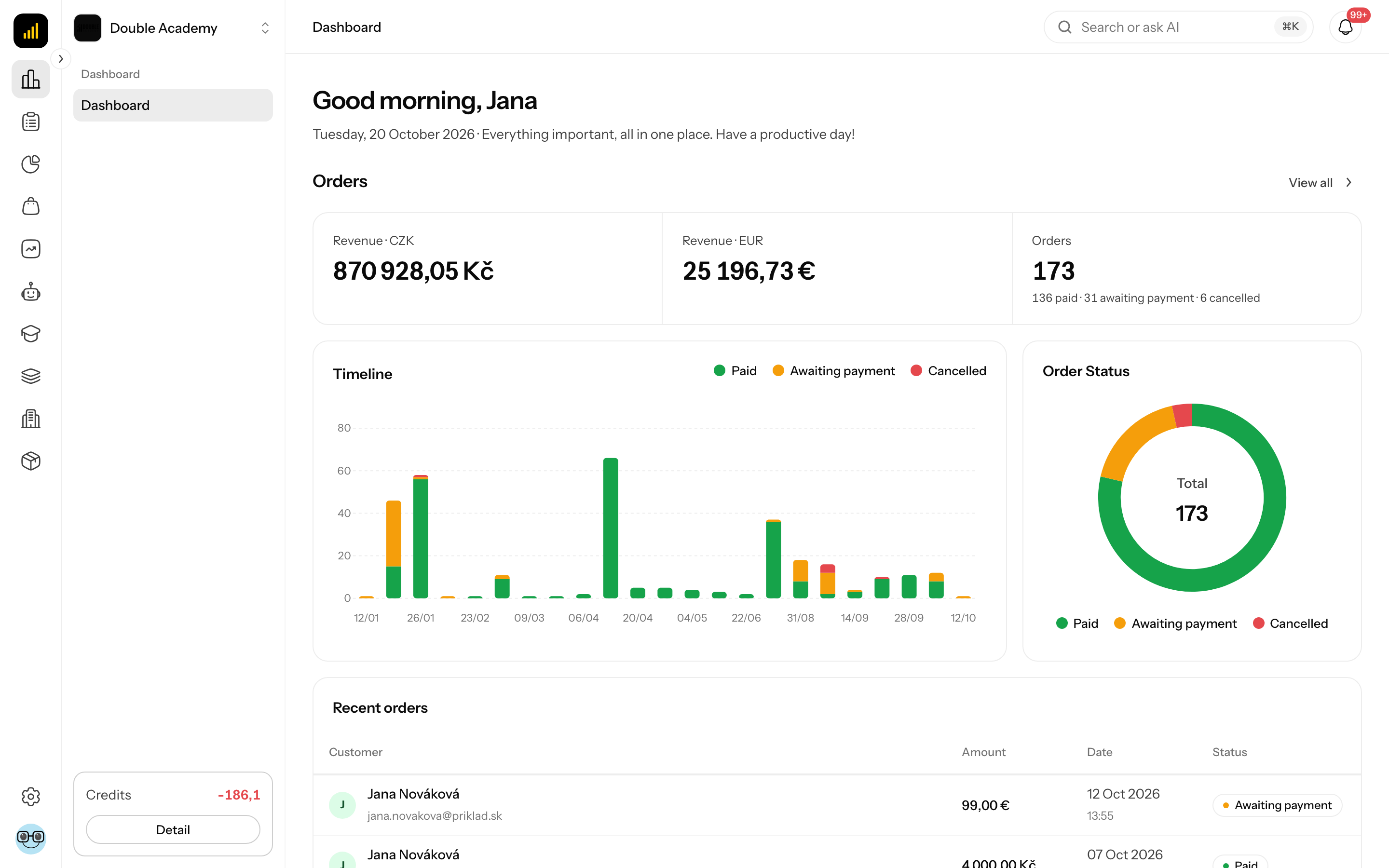
- In the top bar click the Search or ask AI field (on a computer it is in the middle of the header, on a phone it is a magnifier icon).
- On a Mac you can press ⌘K instead of clicking. The same shortcut closes the panel.
- On a computer the Ros panel opens on the right; on a phone it opens full screen. Close the panel with the × button in its header.
Ros is available to every member of an organization — it needs neither the AI module in the plan nor a special permission in the permission matrix. You can also open it from the Dashboard page: the Ros card sits in the welcome greeting at the top, and clicking anywhere on it opens the Ros panel.
What I see in the Ros panel
The Ros panel has three parts:
| Part | What it contains |
|---|---|
| Header | the name Ros, below it the subtitle Your assistant (when the model is known, the name of the AI model currently answering follows it); on the right the ⋮ button (menu) and × (close the panel) |
| Conversation | your messages and Ros's answers; in an empty conversation the greeting Hi, I'm Ros! with the text "I'm your guide to the app. Ask how to do something and I'll walk you through it step by step from the manual — right on the screen you're on." |
| Input field | Type a message..., next to it the gallery icon (Attach image), the microphone (Record voice) and Send |
The ⋮ menu in the panel header has one item, Clear history — it deletes the whole conversation (see below).
If the conversation is long, load older messages with Load older messages at its top.
What Ros can change
Ros makes a change as soon as you ask for it — with no further confirmation. It can change only these things:
| Area | What it can do |
|---|---|
| Catalog | create a product; edit a product; edit one product variant; create, edit and delete a category; create an attribute type (e.g. size) and add a value to it (e.g. XL) |
| Discount codes | create, edit and delete a discount code |
| Forms | create, edit and delete a form |
| CRM | add a note to a client (contact); create and edit a task; edit a deal |
Deleting a form
When Ros deletes a form, every answer (submission) the form collected is permanently deleted too. If you want to keep them, do not delete the form through Ros.
Ros cannot: delete a product, an attribute type or an attribute value, create or edit a CRM contact, create a new deal, or change an order, course, website, funnel, live event or organization settings. Make those changes directly in the relevant section of the app.
What Ros can only look up and summarise
In these areas Ros reads, lists and summarises data but changes nothing:
| Area | Examples of what you can ask |
|---|---|
| Orders | finding an order, its status and payment, instalment plans, sent reminders, sales overview, payment gateway and payment methods |
| Shop settings | which categories are in the shop navigation, tax classes |
| Members' area | courses and bundles, lessons, video library, students and their progress, enrolments and access, statistics |
| Projects, websites and funnels | list of projects, pages and funnel steps, domain, generation status, saved versions |
| Ambassador programme | ambassadors, commission levels, referred customers, commissions, payouts, affiliate links |
| Financial reports | revenue over time and by product, country or salesperson, closing rate, salesperson activity |
| Live events | list of events, detail, recordings |
| Organization and team | organization profile, members, roles and their permissions, integration status |
| AI credits | credit balance and transaction history |
| Mail and voice agents | agent settings, e-mail requests and prepared replies, calls |
| Knowledge and AI assistants | sources and their status, assistant settings, versions, evaluations |
| CRM | contacts, groups, deals, tasks, sales targets and pipeline statistics |
When you ask for a change in one of these areas, Ros replies that it can only look the data up there and tells you in which section of the app the change is made.
How to ask Ros something or ask it for a change
Before you start: you need no permission to use Ros itself (see Who can do this), but for a specific action you need the ordinary permission in that section — for example to create a discount code, Sales → Discount Codes → Create.
- In the header click Search or ask AI (or press ⌘K).
- In the Type a message... field write a question or request, for example "Create discount code WINTER2026 for 20% off all products". A message can have at most 5,000 characters.
- Click Send (or press Enter; Shift + Enter inserts a new line).
- Wait for the answer. While Ros is answering, the Send button turns into Stop — use it to interrupt the answer.
- If the result is off, say what to change in the next message. You do not have to start over.
After a change Ros writes a short summary of what it did. If it could not make the change (missing permission, area not in the plan, the tool failed), it says so — and changes nothing.
When Ros first names the screen where something is done in an answer (for example Organization → Integrations), it may write it as a link. Click it to open the screen in the app; on a phone the Ros panel closes so you can see the screen. A link to a screen the app does not have is shown as plain text.
How to check it worked: open the section the change concerns (for example Sales → Discount Codes) and check that the new or edited record is there. Ros never claims it made a change unless the tool actually carried it out.
How to attach an image to a product
Ros sees images and can add them to a product it is creating or editing.
- In the Ros panel click the gallery icon Attach image next to the input field.
- Choose one or more images in JPG, PNG, GIF or WebP format.
- Previews appear above the input field. Remove an image with the cross on its preview.
- Write what to do with the images, for example "Add these photos to the product Wool Hat".
- Click Send.
You can attach at most 5 images to one message. After the fifth, the gallery icon is disabled.
How to dictate a message by voice
- In the Ros panel click the microphone Record voice.
- The browser may ask for microphone access — allow it.
- Speak. End the recording with Stop recording, discard it with Cancel.
- While Transcribing… is shown, the text is being transcribed. It is then inserted into the input field (appended to whatever was already there).
- Check the text and click Send.
If Microphone access was denied appears, allow the microphone for Doubleros in your browser settings and try again.
Example requests that work
Show the last 10 orders and their status
How many students do we have and which courses have the most enrolments?
How many credits do we have left?
What's the state of my CRM pipeline — how many deals and in which stages?
Add product Wool Hat priced at 29.90 EUR in category Winter Accessories
Create discount code WINTER2026 for 20% off all products
Tips: be specific (give a name, price or period), when changing something name the record exactly as it is called in the app, and if Ros asks about something optional you can answer "no".
How to rate an answer
Under a finished Ros answer there are two thumb icons. The Doubleros platform team sees the rating and uses it to improve Ros.
- Under the answer, click Good answer or Bad answer.
- After Bad answer, the field What was wrong? (optional) appears. Write what was wrong and click Send, or click Skip.
- Thanks for the feedback appears.
To take a rating back, click the same thumb again.
How to clear the Ros history
The conversation with Ros is saved. Each member has their own conversation in each organization.
When you open the panel and it already holds a conversation, Ros first asks Continue the conversation? (under it is the time of the last message). Choose New conversation — the old one is hidden and Ros starts fresh, so answers stay on point — or Continue the old one. You cannot type until you choose. If you open the panel with a ready-made question (for example from a suggestion), the old conversation is closed without asking and the question is sent in the new one. If Ros is still answering, the question is not shown.
- In the Ros panel header click ⋮.
- Choose Clear history.
- In the Clear conversation history window confirm with Clear.
Clearing cannot be undone — the messages cannot be restored. Only the conversation is deleted; changes Ros made in the app remain.
Who can do this
| What | Required permission (permission matrix) |
|---|---|
| Use Ros | nothing special — every member of the organization |
| A specific action through Ros | the same permission you would need in that section, e.g. Sales → Products → Create, CRM → Tasks → Edit |
Ros does not bypass permissions. If you lack a permission, it tells you and does not perform the action. Permissions are set as described in Permission matrix.
Common questions and problems
Ros replied "Sorry, that's not my area. I can only help with things related to the app." The question has nothing to do with the app (weather, translations, general knowledge). This is intended. Ask about something in your organization.
Ros wrote "Nothing was changed. While answering this message I read text written by people outside your organization…" In that same answer it read e-mails, form answers or call summaries, and as a safeguard it then changes nothing. If you want the change, confirm it in your next message (for example "yes, do it").
Ros said the request belongs to another area and asked me to send it again. Each message loads only the tools of the areas the message seems to be about. Send the request again and name the area in it, for example "In the CRM create a task…".
Ros said I don't have permission for that. Your role lacks the permission for that action. Ask an administrator of the organization to grant it in Organization → Permissions.
I want Ros to create a page or a funnel. Websites and funnels are created and edited in Studio. Ros can only look them up and summarise them.
The Attach image icon is disabled. 5 images are already attached to the message (that is the limit), an image is uploading, or Ros is still answering.
The message "This tenant does not have an AI API key configured" appeared. Ros currently has no AI service available. It is not a problem in your settings — report it to Doubleros support.
Related
- Assistants — your own AI assistants built on your knowledge bases
- Communication channels — the assistant in Telegram (not Ros)
- Permission matrix — what each role may do
- AI credits — credit balance and usage